> ## Documentation Index
> Fetch the complete documentation index at: https://porter-mintlify-425102cd.mintlify.site/llms.txt
> Use this file to discover all available pages before exploring further.
# Cloning an application
> Clone an existing Porter application to the same cluster or a different one for staging environments, workload migration, or app renaming
Cloning an application allows you to quickly replicate your application configuration. This is ideal for setting up staging/development environments or migrating workloads between clusters.
In addition, this can be used to change the name of an application without having to recreate it.
This feature creates a new application with a unique name while copying the original's resource settings and build configuration.
## How to Clone
Navigate to the **Settings** tab of the application you wish to duplicate and click the **Clone** button .
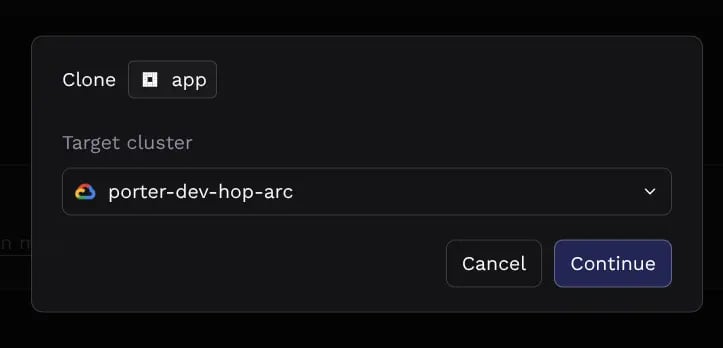
 Select the target cluster from the dropdown menu. You can clone an app into the same cluster or any other cluster in your project.
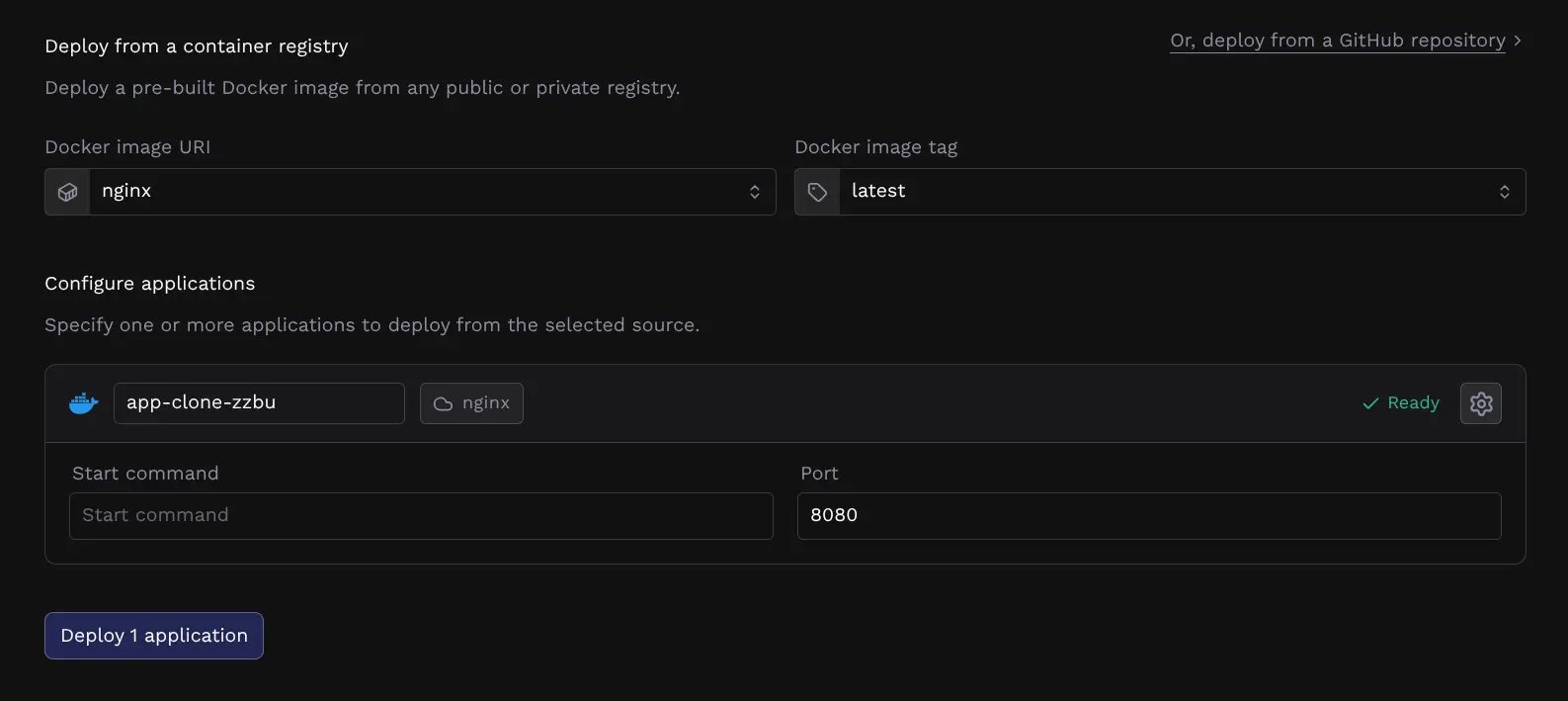
 Review the app configuration and modify as needed. Once this is done, click **Deploy application**.
 ## Important Considerations
Before cloning an app, please be aware of how specific configuration items are handled to prevent deployment failures and conflicts between environments:
**The following configurations are reset during cloning:**
* **Environment Variables:** All inline environment variables are removed.
* **Environment Groups:** All synced environment groups are removed.
* **Networking:** External domains are removed to prevent DNS conflicts with the original app.
## Common Workflows
### Renaming an Application
Application names cannot be changed once created, but cloning can be used as an alternative to achieve this:
1. Clone the application and give it the **new name**.
2. Update the environment variables and secrets on the new app.
3. Once the new app is verified and healthy, delete the original application.
### Migrating Traffic to a Different Environment
Because external domains are removed during cloning to prevent downtime on the source app, follow these steps to switch traffic:
1. Clone the application and verify it is running correctly.
2. **On the cloned app:** Add the custom domain and redeploy.
3. **On the original app:** Remove the custom domain in the **Networking** tab.
Migrating a domain may cause disruption in service while DNS changes propagate. If you have additional
questions reach out to Porter support.
## Important Considerations
Before cloning an app, please be aware of how specific configuration items are handled to prevent deployment failures and conflicts between environments:
**The following configurations are reset during cloning:**
* **Environment Variables:** All inline environment variables are removed.
* **Environment Groups:** All synced environment groups are removed.
* **Networking:** External domains are removed to prevent DNS conflicts with the original app.
## Common Workflows
### Renaming an Application
Application names cannot be changed once created, but cloning can be used as an alternative to achieve this:
1. Clone the application and give it the **new name**.
2. Update the environment variables and secrets on the new app.
3. Once the new app is verified and healthy, delete the original application.
### Migrating Traffic to a Different Environment
Because external domains are removed during cloning to prevent downtime on the source app, follow these steps to switch traffic:
1. Clone the application and verify it is running correctly.
2. **On the cloned app:** Add the custom domain and redeploy.
3. **On the original app:** Remove the custom domain in the **Networking** tab.
Migrating a domain may cause disruption in service while DNS changes propagate. If you have additional
questions reach out to Porter support.