> ## Documentation Index
> Fetch the complete documentation index at: https://porter-mintlify-425102cd.mintlify.site/llms.txt
> Use this file to discover all available pages before exploring further.
# Sandboxes Getting Started
> Enable Porter Sandboxes on a cluster and launch your first sandbox with the Sandbox SDK
Porter Sandboxes are isolated container workloads that you launch from code running inside your Porter cluster. Use them for code interpreters, agent tools, batch fan-out, and other on-demand workloads that may need persistent storage through volumes.
Sandboxes are in a private beta. Please reach out to us at [support@porter.run](mailto:support@porter.run) or over Slack if you are interested in joining.
## Prerequisites
* A Porter project
* An AWS cluster where you want to run sandboxes. We recommend creating a new AWS cluster for sandboxes so sandbox workloads are isolated from your other running workloads.
## Enable sandboxes
Sandboxes can only be enabled on AWS clusters.
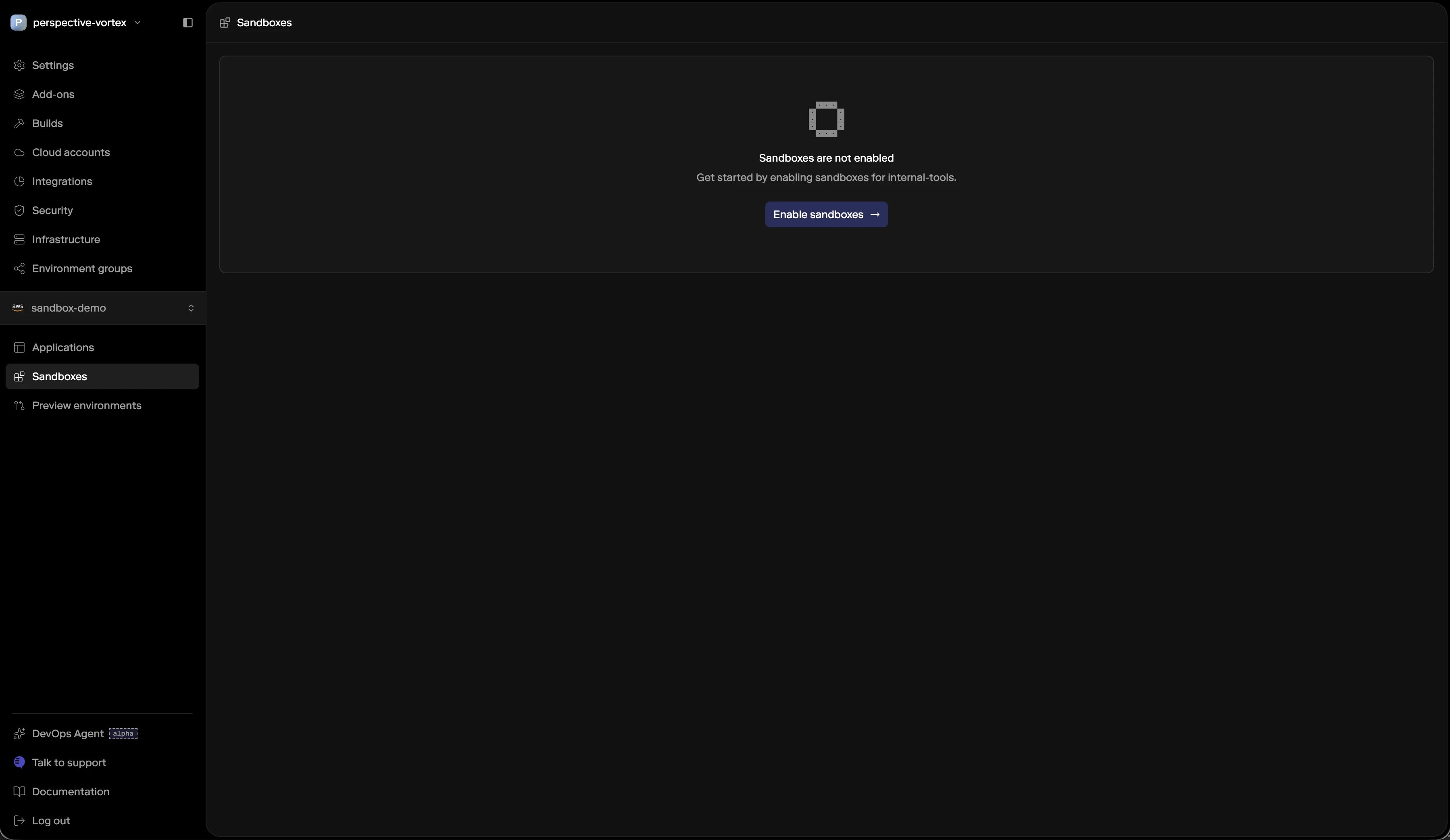
In the Porter Dashboard, navigate to the Sandbox tab for the AWS cluster where you want to run sandboxes and click **Enable sandboxes**.
 Add either the Python or TypeScript Sandbox SDK to the application that will create and manage sandboxes.
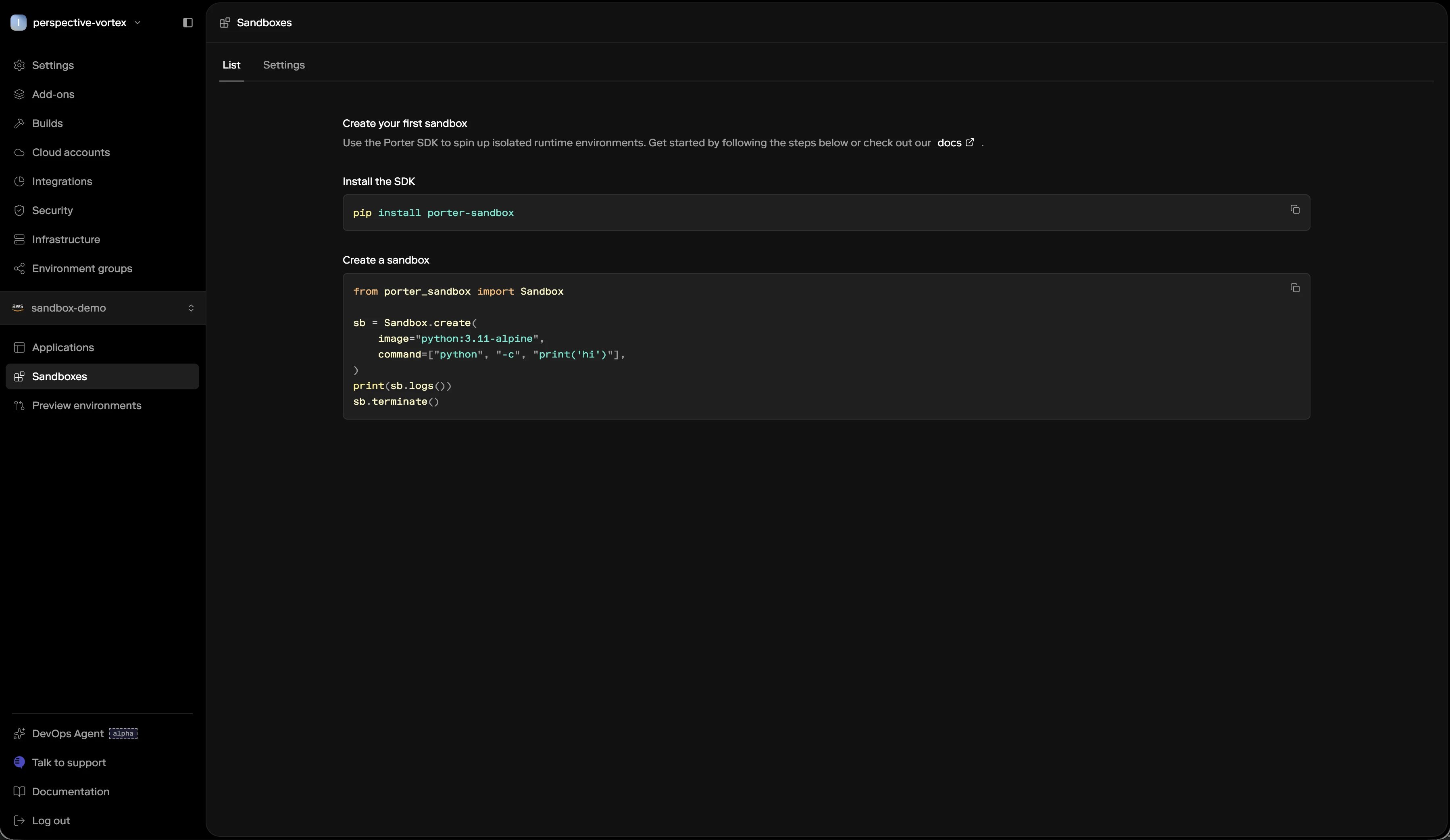 In your application code, create a sandbox, execute a command, read the output, and terminate the sandbox when the work is done. The examples below show the smallest end-to-end flow.
For now, we recommend deploying the application that uses the SDK as a Porter Application in the same cluster where you want to run sandboxes.
## Calling from outside the cluster
The SDK connects to the in-cluster Sandbox API automatically when your application runs as a Porter Application in the same cluster where sandboxes are enabled.
If you need to invoke sandboxes from outside that cluster, configure the SDK with a Porter API token. You can create an API token from **Settings > API tokens** in the Porter Dashboard. Creating API tokens requires admin permissions.
## Python quickstart
Install the SDK in your application image:
```bash theme={null}
pip install porter-sandbox
```
Create a sandbox, run a command, print the output, and terminate it:
```python theme={null}
from porter_sandbox import Porter
with Porter() as porter:
sandbox = porter.sandboxes.create(
image="python:3.12-slim",
name="getting-started-python",
tags={"example": "getting-started"},
)
result = sandbox.exec(["python", "-c", "print(2 + 2)"])
print(result.stdout)
logs = sandbox.logs(limit=100)
print(logs)
sandbox.terminate()
```
## TypeScript quickstart
Install the SDK in your application image:
```bash theme={null}
npm install porter-sandbox
```
Create a sandbox, run a command, print the output, and terminate it:
```typescript theme={null}
import { Porter } from "porter-sandbox";
const porter = new Porter();
const sandbox = await porter.sandboxes.create({
image: "python:3.12-slim",
name: "getting-started-typescript",
tags: { example: "getting-started" },
});
const result = await sandbox.exec(["python", "-c", "print(2 + 2)"]);
console.log(result.stdout);
const logs = await sandbox.logs({ limit: 100 });
console.log(logs);
await sandbox.terminate();
porter.close();
```
## Use tags to identify sandboxes
Tags make it easier to find sandboxes created by a workflow:
```python theme={null}
sandbox = porter.sandboxes.create(
image="python:3.12-slim",
tags={"workflow": "agent-run", "run": "2026-06-17"},
)
```
## Next steps
* Use [the sandbox CLI guide](/sandboxes/cli) to list, inspect logs, exec into, and terminate sandboxes.
* Use the [Python Sandbox SDK quickstart](/sandbox/sdk/python/quickstart) for Python services.
* Use the [TypeScript Sandbox SDK quickstart](/sandbox/sdk/typescript/quickstart) for Node.js and TypeScript services.
In your application code, create a sandbox, execute a command, read the output, and terminate the sandbox when the work is done. The examples below show the smallest end-to-end flow.
For now, we recommend deploying the application that uses the SDK as a Porter Application in the same cluster where you want to run sandboxes.
## Calling from outside the cluster
The SDK connects to the in-cluster Sandbox API automatically when your application runs as a Porter Application in the same cluster where sandboxes are enabled.
If you need to invoke sandboxes from outside that cluster, configure the SDK with a Porter API token. You can create an API token from **Settings > API tokens** in the Porter Dashboard. Creating API tokens requires admin permissions.
## Python quickstart
Install the SDK in your application image:
```bash theme={null}
pip install porter-sandbox
```
Create a sandbox, run a command, print the output, and terminate it:
```python theme={null}
from porter_sandbox import Porter
with Porter() as porter:
sandbox = porter.sandboxes.create(
image="python:3.12-slim",
name="getting-started-python",
tags={"example": "getting-started"},
)
result = sandbox.exec(["python", "-c", "print(2 + 2)"])
print(result.stdout)
logs = sandbox.logs(limit=100)
print(logs)
sandbox.terminate()
```
## TypeScript quickstart
Install the SDK in your application image:
```bash theme={null}
npm install porter-sandbox
```
Create a sandbox, run a command, print the output, and terminate it:
```typescript theme={null}
import { Porter } from "porter-sandbox";
const porter = new Porter();
const sandbox = await porter.sandboxes.create({
image: "python:3.12-slim",
name: "getting-started-typescript",
tags: { example: "getting-started" },
});
const result = await sandbox.exec(["python", "-c", "print(2 + 2)"]);
console.log(result.stdout);
const logs = await sandbox.logs({ limit: 100 });
console.log(logs);
await sandbox.terminate();
porter.close();
```
## Use tags to identify sandboxes
Tags make it easier to find sandboxes created by a workflow:
```python theme={null}
sandbox = porter.sandboxes.create(
image="python:3.12-slim",
tags={"workflow": "agent-run", "run": "2026-06-17"},
)
```
## Next steps
* Use [the sandbox CLI guide](/sandboxes/cli) to list, inspect logs, exec into, and terminate sandboxes.
* Use the [Python Sandbox SDK quickstart](/sandbox/sdk/python/quickstart) for Python services.
* Use the [TypeScript Sandbox SDK quickstart](/sandbox/sdk/typescript/quickstart) for Node.js and TypeScript services.